
Deleting DoorDash account is quick once the right page is open. The clean route is through Manage Account in a browser: request a data archive if needed, then hit Delete Account and confirm with the 6‑digit code. Deleting the app alone won’t remove the profile or billing.
DoorDash is a food delivery platform for restaurants, groceries, and convenience stores, with add‑ons like DashPass for free delivery and lower fees. An account stores addresses, cards, order history, and preferences across web and mobile, which is why using the official delete flow matters for removing personal data, not just logging out.
Follow this account deletion guide to permanently delete your DoorDash account and understand the consequences, including the removal of personal data and recovery options after account deletion. You can also follow this Dasher account deletion guide if you are a driver.
Deleting DoorDash account: precautions
Before you proceed to remove your DoorDash account, there are some precautions you must take, although it is not necessary, but still recommended for data safety purposes.
- Request a data copy (optional): On the Manage Account page, click Request Archive to download receipts and order history before removal. It’s next to Delete Account.
- Cancel DashPass first: Stop subscription renewals separately to avoid charges after deletion—then proceed to delete the account.
- Use credits/balances: Spend gift cards or credits; they won’t carry over after deletion.
- Verify code delivery: Ensure the registered phone or email can receive the 6‑digit verification code used to confirm deletion.
Delete DoorDash account from PC (Website)
- Open DoorDash website using a browser on PC
- Sign in using your credentials
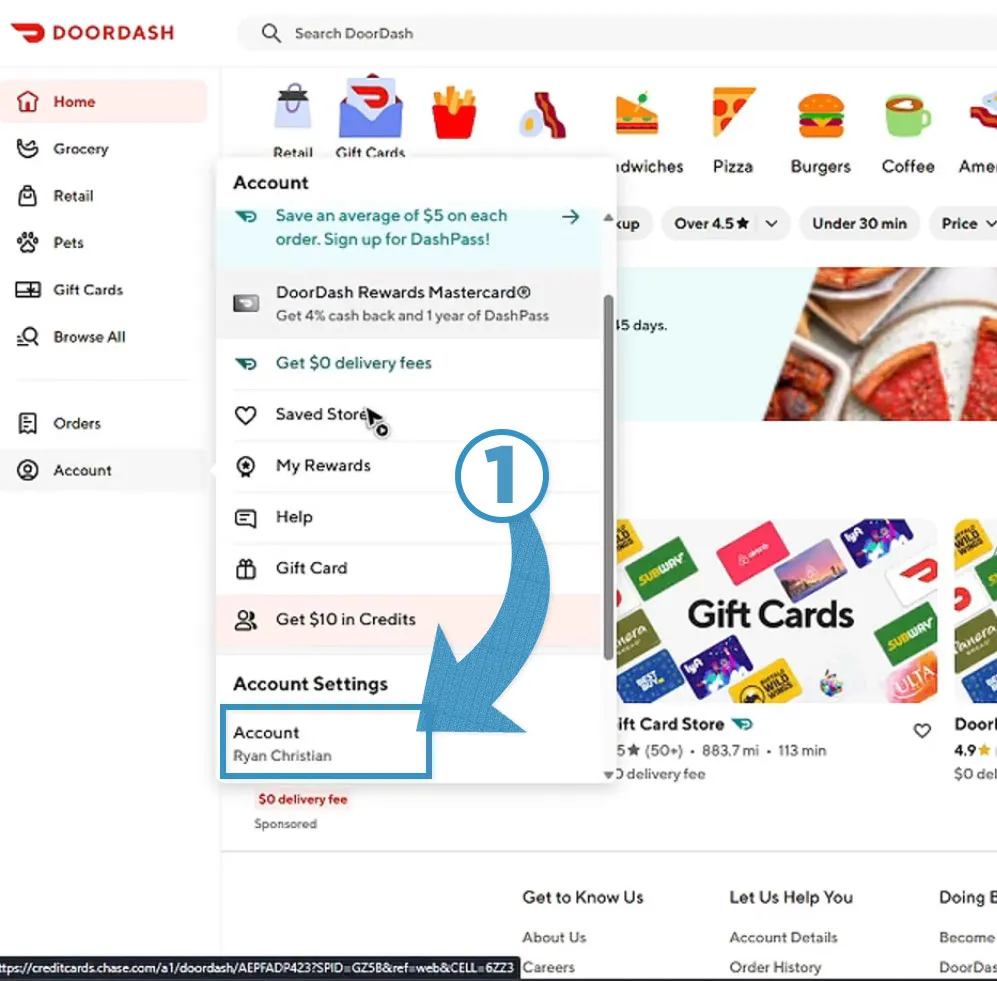
- Click “Account” and “Account” (again)
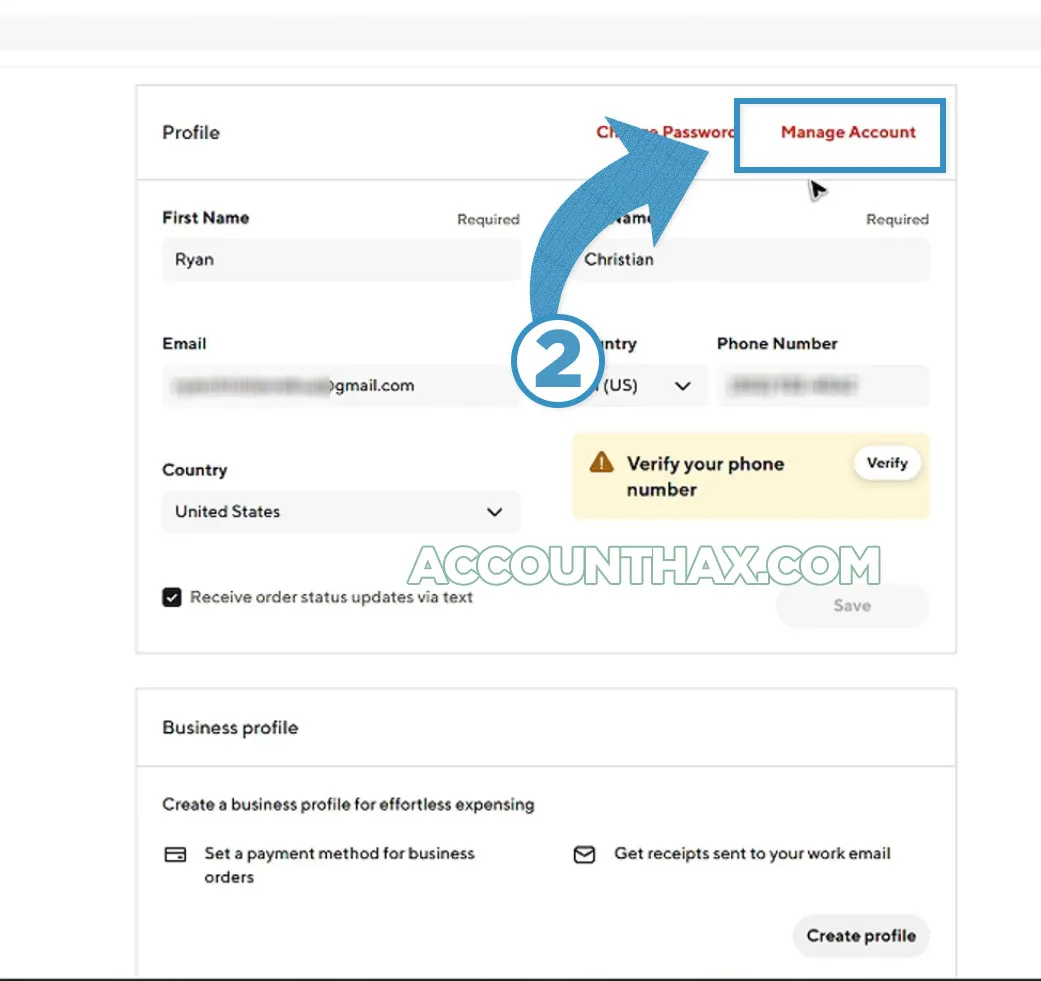
- Click “Manage Account”
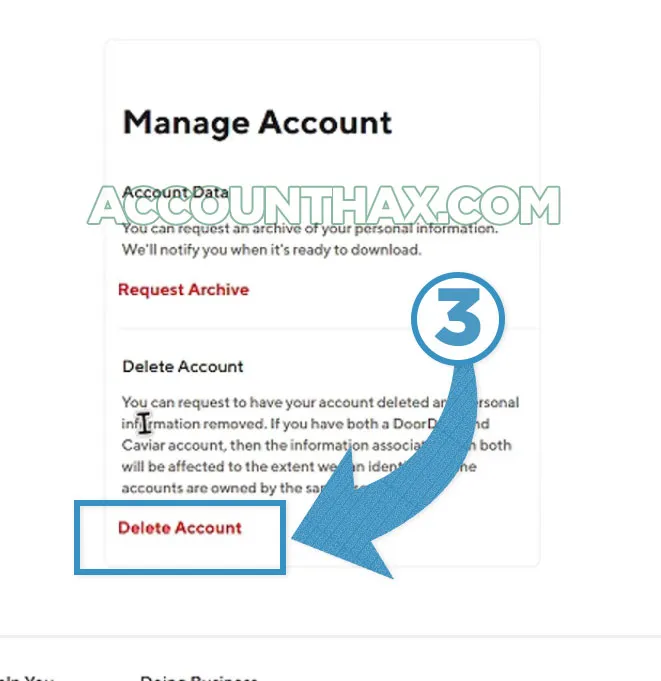
- Click “Delete Account”
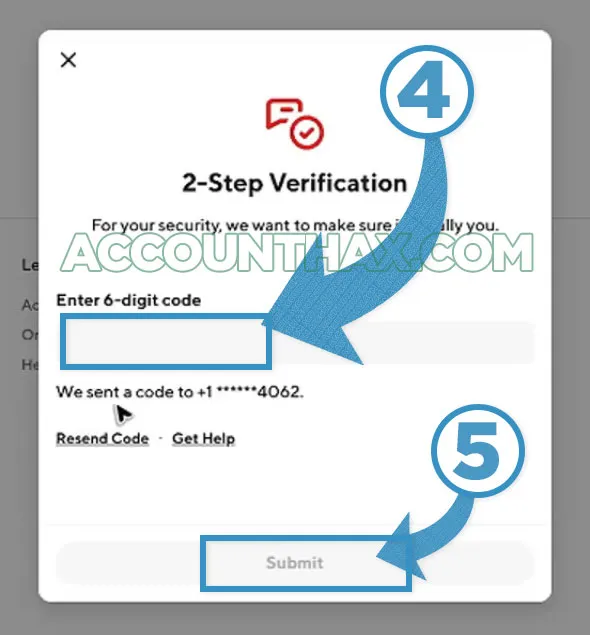
- Enter the 2FA code and click “Submit”
- Click “Continue”
- Click “Delete Account”
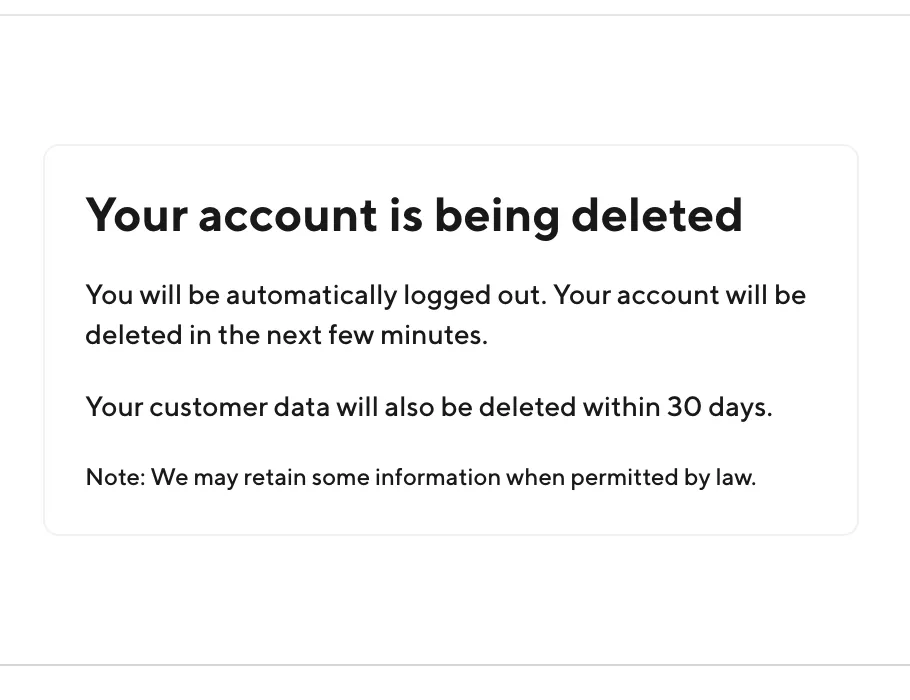
Your DoorDash account should be deleted in the next few minutes. Your customer data will be deleted in 30 days or less.
Delete DoorDash account from App (Mobile)
There is no straightforward method to use the Doodash app on your mobile device and delete the account. Instead, you need to use the mobile browser to delete it.
To delete the Doosdarh account using a mobile phone;
- Use a mobile browser (Chrome/Safari) and switch to the desktop site if needed;
- Open Doordash website and navigate to Account > Account > Manage Account > Delete Account, then enter the code.
Reasons to Delete Your DoorDash Account
- Privacy clean‑up and fewer stored payment profiles.
- Reduce app clutter after switching to other delivery options.
- Fresh start with a new email/number and cleaned‑up addresses.
Recovery options and starting over after account deletion
- Reopening the same account: Treat deletion as permanent; there’s no self‑serve reactivation.
- New account later: It’s possible to create a fresh account (even with the same email/phone), but old orders, addresses, credits, and settings won’t return.
FAQs
Does deleting the app delete my account?
No. Uninstalling or logging out doesn’t remove the profile; delete in a browser via Manage Account and confirm with the 6‑digit code.
Where exactly is Delete Account?
Sign in on the web, click Account in the left menu, click Account again under Account Settings, choose Manage Account, then Delete Account. Enter the 6‑digit code to finish.
Can I download my data first?
Yes—click Request Archive on Manage Account to export receipts and order info, then proceed to deletion once the file is ready or skip if not needed.
Do I have to cancel DashPass separately?
Yes. Turn off DashPass renewals first so there’s no new billing, then delete the DoorDash account.
I didn’t get the 6‑digit code—what helps?
Check SMS and email spam, confirm the contact on file, retry on desktop, and ensure good signal/Wi‑Fi; if it still fails, contact support.
Can I reactivate a deleted account?
No—deletion is intended to be permanent; returning means creating a new account, without past order history or credits.
What happens to saved addresses and cards?
They’re removed with the account deletion process; requesting a data archive beforehand lets you save copies of order info.
Conclusion
The cleanest way to delete a DoorDash account is the browser path: Account > Manage Account > Delete Account, confirm with the 6‑digit code, and keep the confirmation for records. Cancel DashPass first, use any credits, and request a data archive if receipts and history are needed. Starting over later is possible, but nothing from the old account carries forward.